Core Web Vitals Image Guide
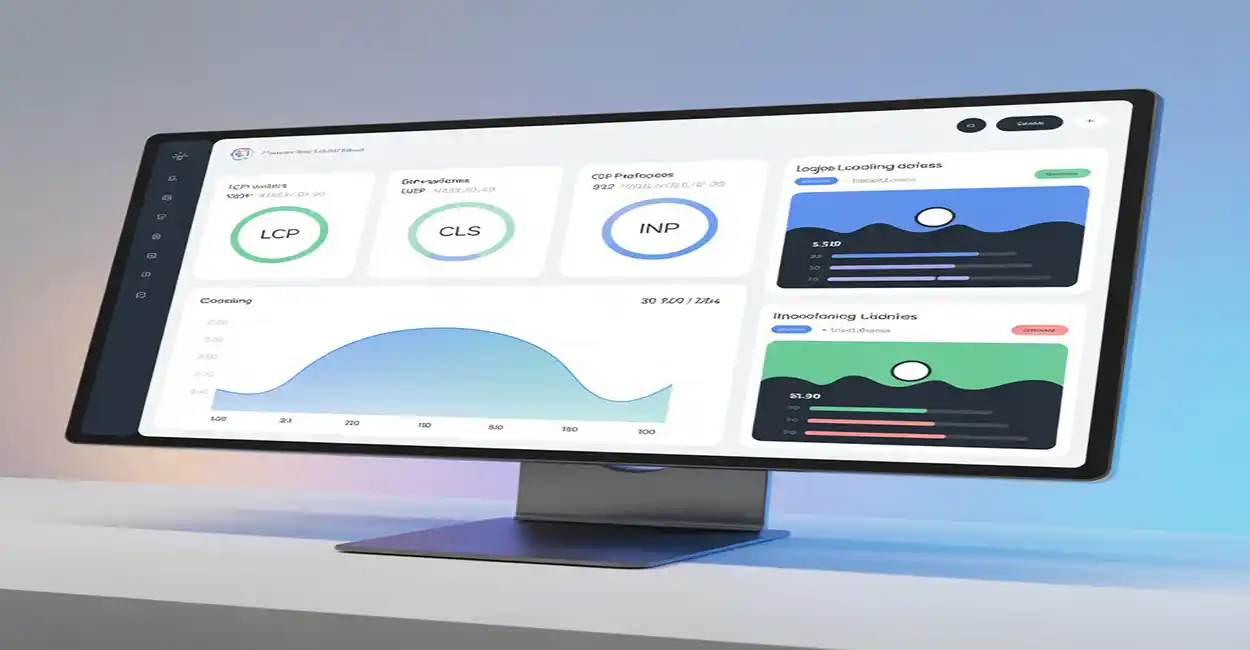
Images are often the heaviest assets on a webpage — and they play a direct, measurable role in your Core Web Vitals. When images are not properly optimized, they slow down rendering, cause layout shifts, and make your website feel sluggish and unstable. When they are optimized, the opposite happens: pages load faster, feel smoother, and deliver a better experience across all devices.
This guide focuses on how images affect the three Core Web Vitals that matter most for performance: LCP (Largest Contentful Paint), CLS (Cumulative Layout Shift), and INP (Interaction to Next Paint). You will learn exactly what each metric measures, how images impact them, and which optimization strategies you can apply today using modern formats such as WebP.
1. What Are Core Web Vitals?
Core Web Vitals are a set of user-centric performance metrics defined by Google to measure how real users experience your website. They are not abstract numbers: they reflect whether your pages feel fast, stable, and responsive in everyday browsing.
- LCP (Largest Contentful Paint): how quickly the main content becomes visible.
- CLS (Cumulative Layout Shift): how much the layout moves unexpectedly while loading.
- INP (Interaction to Next Paint): how quickly the page reacts to user interactions.
Images influence all three metrics because they often account for the largest visual element, occupy key positions on the page, and require significant network and processing resources.
2. How Images Affect LCP (Largest Contentful Paint)
LCP measures the time it takes for the largest visible element on the screen to render. On many pages, this “largest element” is a hero image, banner, or product photo. If that image is too large, uncompressed, or loaded inefficiently, LCP scores will suffer.
Best practices for LCP with images:
- Use responsive sizes instead of huge originals (for example, 1200–1600px for hero images).
- Convert heavy JPG/PNG files to WebP to reduce weight dramatically.
- Serve critical images using fast hosting and a CDN when possible.
- Avoid unnecessary scripts or delays before rendering above-the-fold images.
Even a single heavy hero image can make your page feel “stuck” during loading. Replacing it with an optimized WebP version is often the quickest win for better LCP.
3. How Images Affect CLS (Cumulative Layout Shift)
CLS measures how much the layout shifts unexpectedly while the page is loading. You’ve probably experienced this: you go to click a button, but the content suddenly jumps down because an image finally loads. This kind of layout shift frustrates users and leads to poor CLS scores.
Common image-related CLS issues:
- Images inserted without explicit width and height attributes.
- Ad banners or hero images loaded dynamically without reserved space.
- Carousels that expand in height after images finish loading.
How to reduce CLS with images:
- Always define
widthandheightor use CSS to reserve space. - Avoid inserting images above existing content after initial render.
- Keep aspect ratios consistent in grids, lists, and galleries.
When space is reserved for every image, the layout remains stable while content loads, greatly improving CLS scores and making the site feel more professional.
4. How Images Affect INP (Interaction to Next Paint)
INP measures how quickly the page responds visually after a user interacts — whether by clicking, tapping, or typing. While images are not the only factor, heavy imagery can put a lot of stress on the main thread and on the device’s CPU and GPU, especially on lower-end phones.
Pages overloaded with large images, background photos, and complex effects are slower to react. Optimizing and reducing the total weight of images makes scripts execute faster and minimizes visual jank after interaction.
Tips to help INP with images:
- Compress all non-critical images using modern formats like WebP.
- Lazy-load images that are below the fold using
loading="lazy". - Keep the number of heavy background images and large sliders to a minimum.
5. Practical Image Optimization Checklist
To improve Core Web Vitals using image optimization, you can follow this simple checklist:
- Resize every image to match its display size (no oversized uploads).
- Convert JPG and PNG files to WebP wherever possible.
- Set
widthandheightattributes on all inline images. - Use
loading="lazy"for images below the fold. - Compress aggressively but visually test for quality loss.
- Use a CDN or fast hosting to serve large assets.
These individual tweaks add up. The result is a website that feels faster, more stable, and more enjoyable to use on both mobile and desktop.
Final Thoughts
Core Web Vitals are not just metrics for developers — they are a reflection of how real people experience your website. Because images are such a dominant part of most pages, they deserve special attention. By choosing modern formats like WebP, resizing and compressing correctly, reserving layout space, and using lazy loading wisely, you can dramatically improve LCP, CLS, and INP at the same time.
When images are optimized, pages feel lighter, interactions are smoother, and users stay longer. That combination leads to better rankings, stronger engagement, and a healthier site overall — all starting with how you handle your images.
The information in this article is provided for educational and informational purposes only and does not constitute professional, technical, or legal advice. ImgConvertCompress makes no guarantees regarding accuracy, completeness, or suitability for any specific use case. You are solely responsible for evaluating and implementing any techniques described here. Always verify compatibility with your hosting environment, platform, and workflow before applying changes.